2026-02-28 ·
Bridge UIs: The Complete Guide to Visual Integration Management in 2026
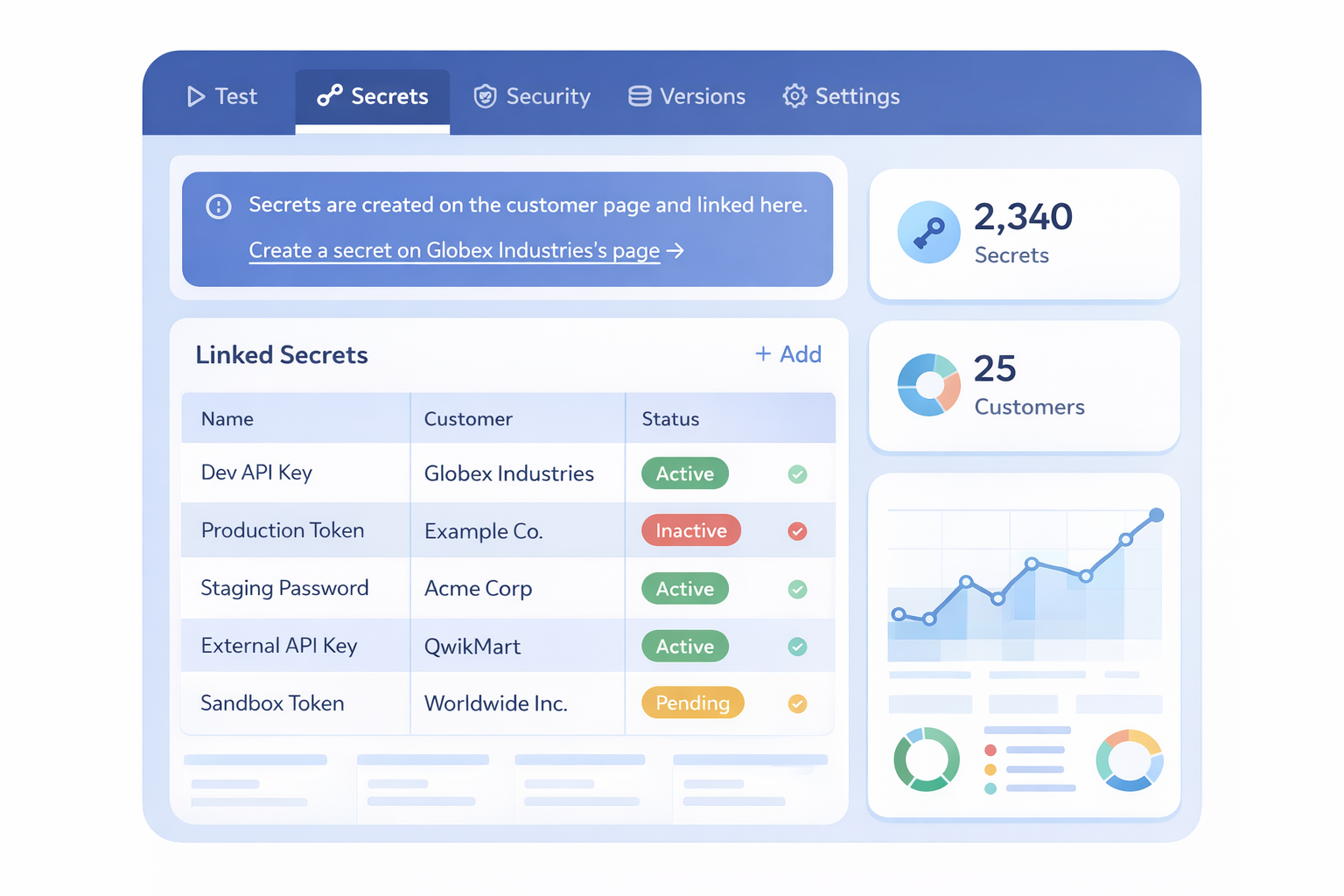
Bridge UIs are visual interfaces that provide a user-friendly way to build, manage, and monitor API integrations without writing complex code. These intuitive dashboards transform technical integration work into visual workflows that both technical and non-technical team members can understand and use.
If you've ever struggled with managing multiple API connections, debugging integration failures, or explaining technical processes to stakeholders, you know how frustrating traditional integration management can be. Teams spend countless hours switching between different tools, writing documentation, and troubleshooting issues that could be resolved much faster with the right visual interface.
In this guide, you'll learn what makes Bridge UIs different, how they solve common integration challenges, and the step-by-step process to implement them effectively. We'll also explore real-world applications and answer the most common questions teams have about adopting visual integration management.
Key Takeaways
- Bridge UIs transform complex API integrations into visual, manageable interfaces
- Teams can reduce integration build time from weeks to minutes using visual workflows
- Non-technical stakeholders gain visibility into integration status and performance
- Visual debugging capabilities help identify and resolve issues 3x faster than traditional methods
- Customer self-service portals reduce support tickets by up to 60%
Why Are Traditional Integration Management Methods So Challenging?
Managing API integrations traditionally requires juggling multiple tools, platforms, and interfaces. Development teams often work in code editors, deployment happens through separate systems, and monitoring requires yet another dashboard. This fragmented approach creates several pain points that slow down teams and frustrate stakeholders.
The biggest challenge is visibility. When integrations break or need updates, teams waste time figuring out what went wrong and where. Non-technical team members can't see integration status or performance, leading to constant check-ins and status meetings.
Debugging becomes a nightmare when you're switching between logs, code repositories, and monitoring tools. Simple changes that should take minutes often stretch into hours because the context switching kills productivity. Customer support teams can't help clients with integration issues because they don't have access to the technical details they need.
- Fragmented tooling requires constant context switching
- Limited visibility for non-technical stakeholders
- Time-consuming debugging across multiple platforms
- Customer support teams lack integration visibility
- Complex deployment processes slow down updates
How Do Bridge UIs Solve Integration Management Problems?
Bridge UIs consolidate all integration management tasks into a single, visual interface. Instead of jumping between tools, teams work within one dashboard that shows the complete integration lifecycle from build to monitor.
The visual approach transforms abstract API connections into clear, understandable workflows. Team members can see exactly how data flows between systems, where bottlenecks occur, and which integrations need attention. This transparency helps everyone understand what's happening without diving into technical details.
AI-powered bridge generation takes this further by allowing teams to describe what they need in plain English. The system generates production-ready integration code automatically, reducing build time from weeks to minutes. Teams can focus on business logic instead of boilerplate code.
Customer portals give clients direct access to manage their integrations. They can view status, update API keys, and trigger actions without contacting support. This self-service capability reduces support tickets while improving customer satisfaction.
Built-in monitoring and debugging tools provide real-time insights into integration performance. When issues occur, teams can identify root causes quickly using visual error tracking and detailed logs all in one place.
How to Implement Bridge UIs for Your Integration Management
Successfully implementing Bridge UIs requires a strategic approach that considers your team's current workflow, technical requirements, and stakeholder needs. Follow these steps to ensure smooth adoption and maximum impact.
1. Audit Your Current Integration Landscape
Start by mapping all existing integrations and the tools your team currently uses. Document which systems connect to what, who manages each integration, and where common pain points occur. This baseline helps you understand which integrations to migrate first and what features you'll need most.
2. Set Up Team Access and Permissions
Configure role-based access control to ensure team members see only what's relevant to them. Developers need full access to code and deployment features, while project managers might only need status visibility. Customer success teams should have access to client portal management without seeing sensitive technical details.
3. Create Your First Bridge Using AI Generation
Choose a simple, non-critical integration for your first Bridge UI implementation. Use the AI-powered generation feature to describe your integration needs in plain English. The system will create production-ready code that you can review and deploy. This hands-on experience helps your team understand the platform's capabilities.
4. Configure Customer Portals for Self-Service
Set up branded customer dashboards that allow clients to manage their own API keys, view integration status, and access documentation. Start with your most technically savvy customers who can provide feedback on the portal experience. Their input helps refine the interface before rolling out to all clients.
5. Establish Monitoring and Alert Workflows
Configure monitoring dashboards to track integration performance, error rates, and usage patterns. Set up alerts that notify the right team members when issues occur. Use the visual debugging tools to create runbooks that help team members resolve common problems quickly.
6. Train Your Team and Measure Success
Provide hands-on training for all team members who will use the Bridge UIs. Focus on their specific use cases and workflows. Track metrics like time to resolution for integration issues, customer support ticket volume, and team productivity to measure the impact of your Bridge UI implementation.
Frequently Asked Questions
What makes Bridge UIs different from traditional API management tools?
Bridge UIs focus on visual workflow management rather than just API documentation or monitoring. They provide a complete interface for building, deploying, and managing integrations with AI-powered code generation and customer self-service portals. Traditional tools typically require multiple platforms to achieve the same functionality.
Can non-technical team members actually use Bridge UIs effectively?
Yes, Bridge UIs are designed for cross-functional teams. Non-technical users can view integration status, understand data flows through visual representations, and manage customer portal settings without touching code. The visual interface translates technical concepts into understandable workflows.
How long does it take to migrate existing integrations to Bridge UIs?
Migration time depends on integration complexity and your current setup. Simple integrations can be recreated using AI generation in minutes. More complex integrations might take a few hours to rebuild and test. Most teams start with new integrations and gradually migrate existing ones over several weeks.
What happens if the Bridge UI platform experiences downtime?
Bridge UIs deploy integrations to live URLs that operate independently of the management interface. Your integrations continue running even if the UI platform is unavailable. You can also export integration code for backup deployment using your existing infrastructure if needed.
Do Bridge UIs work with existing development workflows and CI/CD pipelines?
Yes, Bridge UIs integrate with standard development practices. You can export generated code to version control systems, incorporate testing into your CI/CD pipeline, and use the built-in code editor alongside your preferred development tools. The platform complements rather than replaces your existing workflow.
Ready to Transform Your Integration Management?
See how Bridge UIs can reduce your integration build time and improve team collaboration with visual workflow management.